
Accept your invitation
For everyone. From the email to your first sign-in.
Before you start
- The invitation works for 7 days, and only for you. The email gives the exact expiry date and time.
- Use the work account the email was sent to: the address you sign in to Microsoft 365 with, not a shared mailbox. Personal Microsoft accounts, such as Outlook.com or Hotmail, cannot be used.
- Open the link and enter the code in the same browser, and keep that tab open until you have finished.
Accept it
- Open the email titled Your invitation to the CGS Customer Insights Portal and select Accept the invitation.
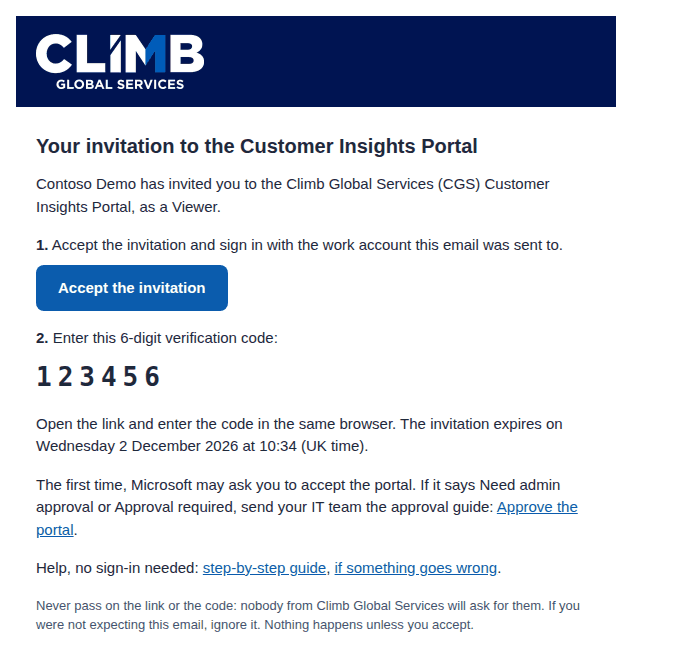
The invitation email (123456 is an example code) - Select Sign in with Microsoft and sign in as you normally do, including any extra check your organisation asks for. If the page already shows step 2, you are signed in: skip to step 4.
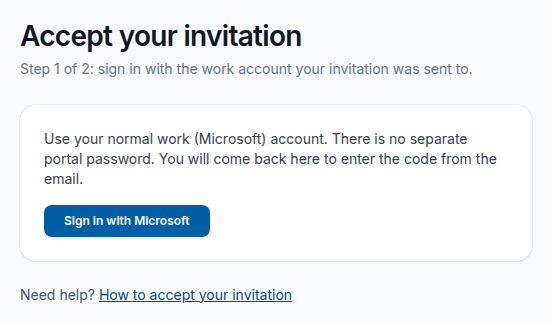
Step 1: sign in - The first time, Microsoft may ask you to accept the portal. It asks only to sign you in and see your basic profile and email address: select Accept. If Microsoft says Need admin approval, or Approval required with a Request approval button, your IT team has to approve the portal first: see If your IT team needs to approve it below.
- Check Signed in as shows the address the email was sent to (if not, select Use a different account). Enter the 6-digit verification code from the email and select Accept invitation. Five wrong codes lock the invitation; your portal administrator can then use Send again.
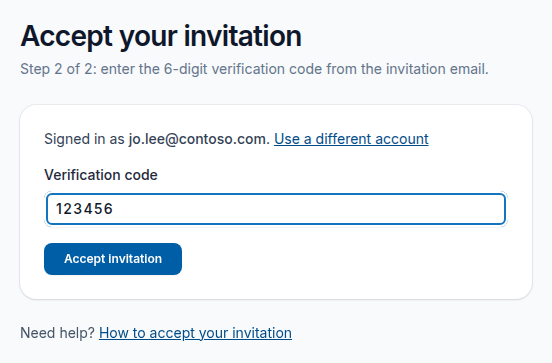
Step 2: check the account, then enter the code - Select Go to the portal, and bookmark the portal itself rather than the invitation page. From now on you only need to sign in.
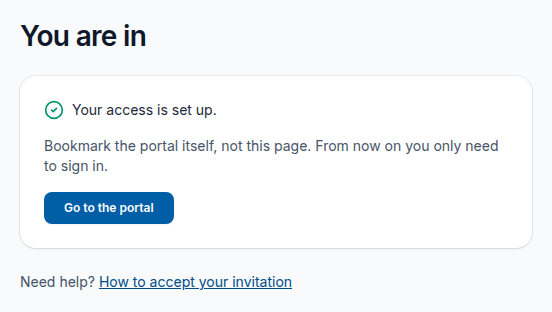
Done: go to the portal
If your IT team needs to approve it
- Send your IT team this page: Approve the portal. Do not send them your invitation link or code. If you were invited by an organisation you do not work for, it is still your own IT team, because you sign in with your own work account: see People invited by another organisation.
- If Microsoft showed Approval required, you can also give a reason and select Request approval. Microsoft emails you when it has been approved.
- Once it is approved, open the link in your invitation email again and carry on from step 2. If the invitation has expired by then, ask your portal administrator to use Send again.
What Microsoft's screens look like: consent and approval screens (Microsoft).
Is the email genuine?
- Invitations come from DoNotReply@mail.insights.climbglobalservices.com.
- The email says which organisation invited you and with which role. The link opens insights.climbglobalservices.com, and sign-in happens on Microsoft's own page (login.microsoftonline.com), where the application is called Climb Customer Insights. The portal never asks for your password.
- Nobody at Climb Global Services will ask you for the code. Do not pass it, or the link, to anyone.
- If you were not expecting it, ignore it. Nothing happens unless you accept.
The email has not arrived, or the link has expired
Check your junk folder, then ask your portal administrator to use Send again. The new email has a new link and code, and the earlier ones stop working, so use the newest email. Anything else: see Sign-in problems.