
Approve the portal
For IT administrators. What the portal asks for in Microsoft Entra, and how to approve it.
Why approval is needed
People sign in with their own Microsoft Entra account, so the portal appears in your tenant as an enterprise application called Climb Customer Insights. If your organisation lets people accept applications themselves, each person accepts it the first time they sign in. Otherwise they see Need admin approval (or Approval required, if you use Microsoft's approval request process), and an administrator approves it once for everyone.
What it asks for
- Sign you in (openid), view your basic profile (profile) and view your email address (email).
- It cannot read mail, files, calendars, groups or your directory, and it cannot act when nobody is signed in.
- The portal keeps each member's user and tenant ID, invited email address, role and when they last used it, and a record of what administrators do.
Approval lets people sign in. It does not give anyone access: that still needs an invitation.
What Microsoft's approval screen shows
- The application name Climb Customer Insights, with the Climb logo. Microsoft groups the permissions above as View users' basic profile.
- Microsoft also lists Maintain access to data you have given it access to on every approval screen. The portal does not ask for it and keeps no Microsoft tokens: after sign-in it holds only its own 8-hour session.
- The application (client) ID:
06ac9ae5-c854-478c-af6f-b422d8ccad91. Check it matches. - The publisher may be shown as unverified while Climb Global Services completes Microsoft's publisher verification. The application ID above is the reliable check. About publisher verification (Microsoft).
Approve it
- Sign in as a Cloud Application Administrator, Application Administrator or Global Administrator of the tenant your people sign in with.
- Open the approval link. The best one is the link your portal administrator copies from the portal's Administration page (Sign-in and access): it opens your own tenant. Otherwise use this general approval link and make sure you sign in to the right tenant.
- Check the name, permissions and application ID match those above, then select Accept.
- You return to the portal and see The portal is approved. Tell the people who were waiting: they open the link in their invitation email again.
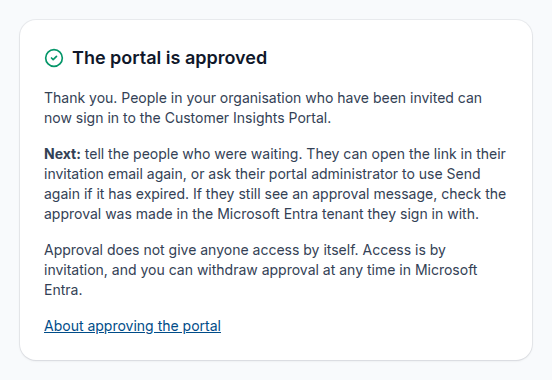
After approving
If your people sign in from more than one tenant, approve it in each one. If you see The portal was not approved, nothing changed: check the role you signed in with, then open the link again. Microsoft's own guide: Grant tenant-wide admin consent to an application (Microsoft).
People invited by another organisation
Approval belongs to the tenant of the person's own work account, not the organisation that invited them. If a supplier, partner or Climb Global Services colleague is invited to your organisation's portal, they sign in with their own organisation's account, so their own IT team approves it in their tenant. Microsoft's screen says which tenant: each permission reads a permission requested to access your data in followed by the person's own organisation.
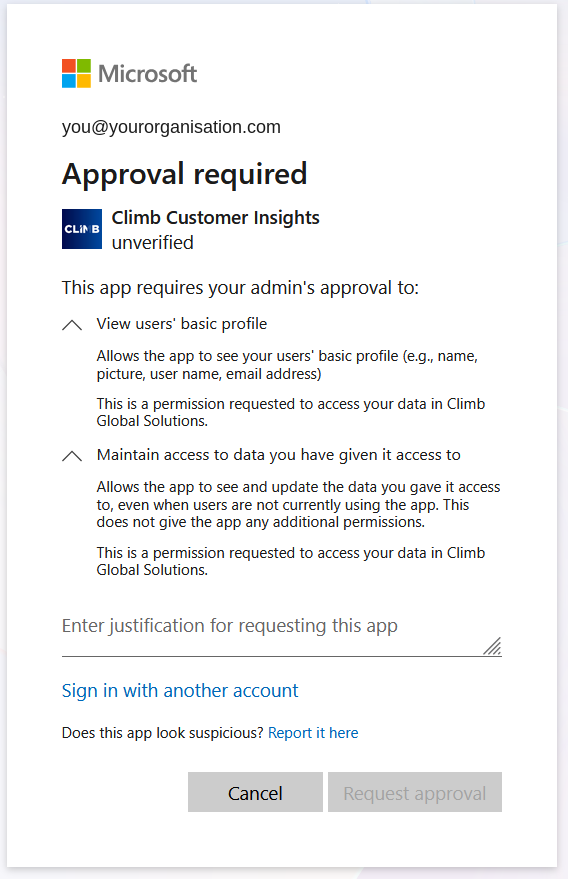
- The invited person selects Request approval, with a short reason such as "Invited to the Climb Customer Insights portal by [organisation]", or sends this page to their own IT team.
- An administrator of their tenant approves it, with Approve it above or by reviewing the request in the Microsoft Entra admin center. The general approval link works for any tenant: sign in to the right one.
- Once it is approved, the person opens the link in their invitation email again.
The inviting organisation cannot approve it on their behalf. A guest account in the inviting organisation's tenant is not used: the portal always signs people in from their own tenant, which must also be linked to the inviting organisation in the portal (ask Climb Global Services).
Approval requests
If you use Microsoft's admin consent workflow, people can select Request approval and you review the request in the Microsoft Entra admin center. Approving the request approves the portal in the same way. Review admin consent requests (Microsoft).
Your own policies
- Conditional Access and multi-factor sign-in apply as they do for any application. You can target the portal by name or application ID.
- Assignment required: if you turn this on for the enterprise application, assign the people or groups who need the portal as well. Assign users and groups (Microsoft).
- Guests: people sign in with their home organisation's account, so their home tenant must be linked to your organisation in the portal (ask Climb Global Services first), and their own IT team approves the portal: see People invited by another organisation.
- Email filtering: allow invitations from DoNotReply@mail.insights.climbglobalservices.com, with the subject Your invitation to the CGS Customer Insights Portal.
Withdraw approval
In the Microsoft Entra admin center, open Enterprise applications, find the portal by its application ID, and turn off Enabled for users to sign in or delete it. Anyone already signed in keeps their session for up to 8 hours, so also remove them on the portal's Administration page to stop access at once. Stop sign-in to an application (Microsoft).