
Manage people
For portal administrators. Invite, send again, cancel and remove.
Before the first person signs in
Check with your IT team that the portal is approved for your organisation: see Approve the portal. On the Administration page, under Sign-in and access, select Copy approval link for your organisation and send it to them with that page. If your organisation has more than one Microsoft tenant, each has its own link.
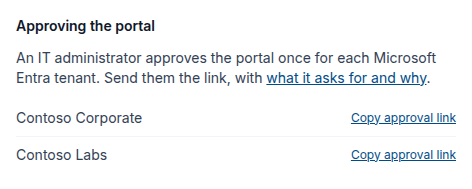
Invite someone
- Open Administration in the menu. Only administrators see it.
- Under Invite a colleague, enter the work email address they sign in to Microsoft 365 with (not a shared mailbox), and choose a role. See what each role can do.
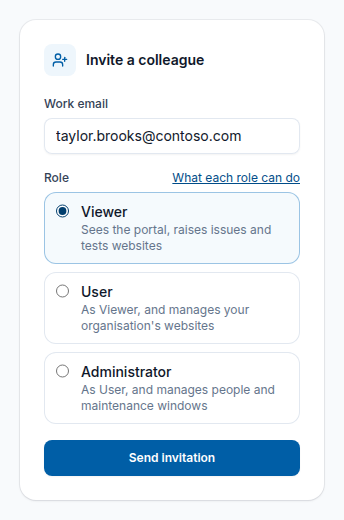
Invite a colleague - Select Send invitation. It appears under Pending invitations until they accept. Tell them to expect an email titled Your invitation to the CGS Customer Insights Portal, and send them Accept your invitation.
A new invitation to the same address replaces the earlier one. Invitations can only go to your organisation's allowed email domains, shown under Sign-in and access; Climb Global Services can change the list.
Pending and expired invitations
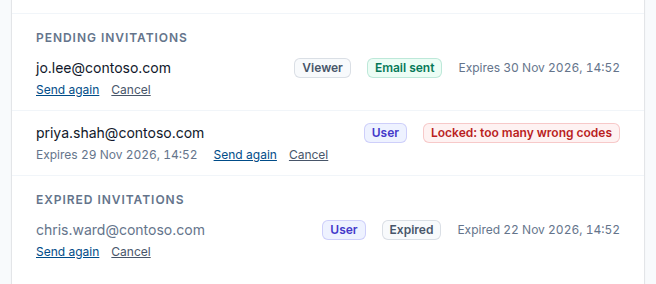
- Sending: the email has not been confirmed yet. Reload the page to see the latest; if it still says Sending after a few minutes, select Send again.
- Email sent: the message was handed over for delivery. It can still be delayed or land in junk.
- Email failed: it was not sent. Wait a minute and select Send again.
- Locked: too many wrong codes: the wrong code was entered five times. Send again unlocks it.
- Invitations not accepted within 7 days move to Expired invitations. Send again sends a fresh one.
Send again emails a new link and code and gives 7 more days; the earlier link and code stop working. You can use it again after a minute. Cancel, then Confirm cancel, withdraws an invitation at once.
Remove someone
Select Remove beside their name, then Confirm remove. Their access stops the next time they load a page. When someone leaves, remove them here as well as disabling their work account.
You cannot remove yourself, or the last administrator. To hand over, invite another administrator and wait until they have accepted.
Change a role or an email address
To change someone's role, remove them, then invite them again with the new role. They have no access until they accept the new invitation, so tell them it is coming. To change the address their notification emails go to, invite them at the new address; accepting it updates their address and keeps their role.