
Sign in and sign out
For everyone. Signing in with your work account, day to day.
Sign in
- Open the portal and select Sign in with Microsoft.
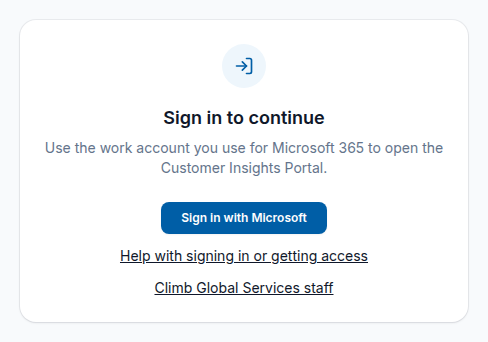
The portal before you sign in - Choose the work account you accepted the invitation with. If it is not listed, select Use another account and type it in.
- Complete any check your organisation asks for, such as approving a notification on your phone.
There is no separate portal password, so password changes and multi-factor sign-in are handled by your organisation, not by Climb Global Services. The CGS administrators link is only for Climb Global Services portal administrators; anyone else, including CGS staff invited to an organisation, uses Sign in with Microsoft.
How long you stay signed in
Up to 8 hours. After that, select Sign in with Microsoft again; Microsoft often signs you straight back in.
Use a different account
If the portal says No access yet, check the account it shows. To change it, select Use a different account on that screen (or on the invitation page) and choose the right account. Opening the portal in a private browser window also works.
Switch organisation
If you have access to more than one organisation, select the organisation's name in the menu to open Your organisations, then choose one. Every page then shows that organisation only. If another tab still shows the earlier one, it asks you to reload.
Sign out
- On a computer: select the sign-out icon beside your name, at the bottom of the menu on the left.
- On a phone: select the sign-out icon beside your initials, at the top right.
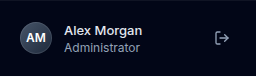
This signs you out of the portal only, so on a shared computer also sign out of Microsoft and close the browser.
Supported devices
- A current version of Edge, Chrome, Firefox or Safari, on a computer, tablet or phone.
- Cookies must be allowed for the portal. It uses them only to keep you signed in and remember your choices.
Something not working? See Sign-in problems.