
Sign-in problems
For everyone. What each message means and what to do.
Signing in
Find the message you see. Microsoft's own wording can differ slightly from the quotes below.
- “Need admin approval” or “Approval required” Microsoft's page
- Your organisation has not approved the portal yet. Send your IT team Approve the portal, never your invitation link or code. With Approval required you can also select Request approval. Once it is approved, open your invitation link again. See what these screens look like (Microsoft).
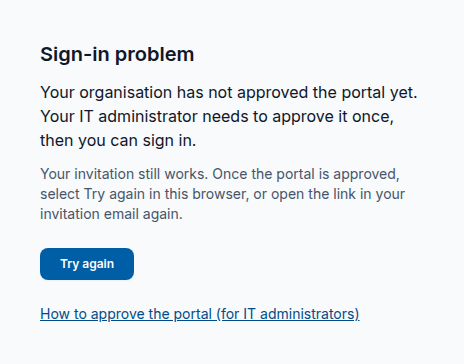
- “Your organisation has not approved the portal yet” Portal: Sign-in problem
- The same as above, reported by the portal. Send your IT team Approve the portal. Once it is approved, select Try again, or open your invitation link again.
- “Microsoft did not get approval for the portal” Portal: Sign-in problem
- You selected Cancel on the approval screen, or sent an approval request that has not been approved yet. If you cancelled, select Try again and then Accept. If you requested approval, wait for Microsoft’s email saying it was approved, then try again.
- “Sign-in was cancelled or refused by Microsoft” Portal: Sign-in problem
- You cancelled the sign-in, or Microsoft refused it, for example because a personal account (Outlook.com, Hotmail) was used. Select Use a different account and choose your work account.
- “You can’t sign in here with a personal account” Microsoft's page
- Only work and school accounts can be used. Choose your work account, or select Use another account and type it in.
- “Your organisation limits who can use the portal” Portal: Sign-in problem
- Your IT team requires people to be assigned to the application. Ask your IT team to assign your account.
- “Your organisation's sign-in rules stopped this sign-in” Portal: Sign-in problem
- A rule about your device, location or sign-in method blocked it. Try from your usual work device, or ask your IT team.
- “We could not verify that sign-in” Portal: Sign-in problem
- The sign-in took too long, or cookies were blocked. Allow cookies for the portal, then sign in again in one browser tab.
- “Sign-in is not available right now” Portal: Sign-in problem
- A fault on the portal side. Try again in a few minutes. If it continues, contact Climb Global Services.
Accepting an invitation
- The email has not arrived Your inbox
- It may be delayed, filtered or in your junk folder. Check junk, then ask your portal administrator to use Send again.
- “Open the link in your invitation email to accept it” Portal: Accept your invitation
- The page was opened without the link from the email, or in a different browser or tab. Open the link from the newest invitation email again, in the browser you will use. If you have already accepted it, just sign in.
- “This invitation cannot be accepted” Portal: Accept your invitation
- The code is wrong, the invitation has expired or been replaced, or the wrong code was entered five times (it is then locked). Use the newest email and check the code. If it still fails, ask your portal administrator to use Send again: that also unlocks it.
- “This invitation was sent to a different address” Portal: Accept your invitation
- The account you signed in with is not the one that was invited. Select Use a different account, or ask your administrator to invite the address you are signed in with.
- “The organisation you signed in with is not linked to this invitation” Portal: Accept your invitation
- Your account belongs to a Microsoft tenant the portal does not know for your organisation. Check you used your work account. If you did, ask your portal administrator to contact Climb Global Services.
- “This invitation has already been accepted” Portal: Accept your invitation
- It has been used. If you accepted it, just sign in. If not, tell your portal administrator straight away.
In the portal
- “No access yet” Portal
- You are signed in, but this account has no access: you have not been invited, have not accepted the invitation, used a different account, or your access was removed. Check the account shown on the screen. If you have an invitation email, open its link. Otherwise see Request access.
- The portal opens but a page is missing Portal
- Your role does not include it. Administration is only for administrators. Ask your portal administrator about your role.
Still stuck?
Tell your portal administrator or IT team what the page says, the time, and the address you signed in with. Never send the code or the link from your invitation. If nobody in your organisation can help, contact your usual Climb Global Services contact or the Climb service desk.